
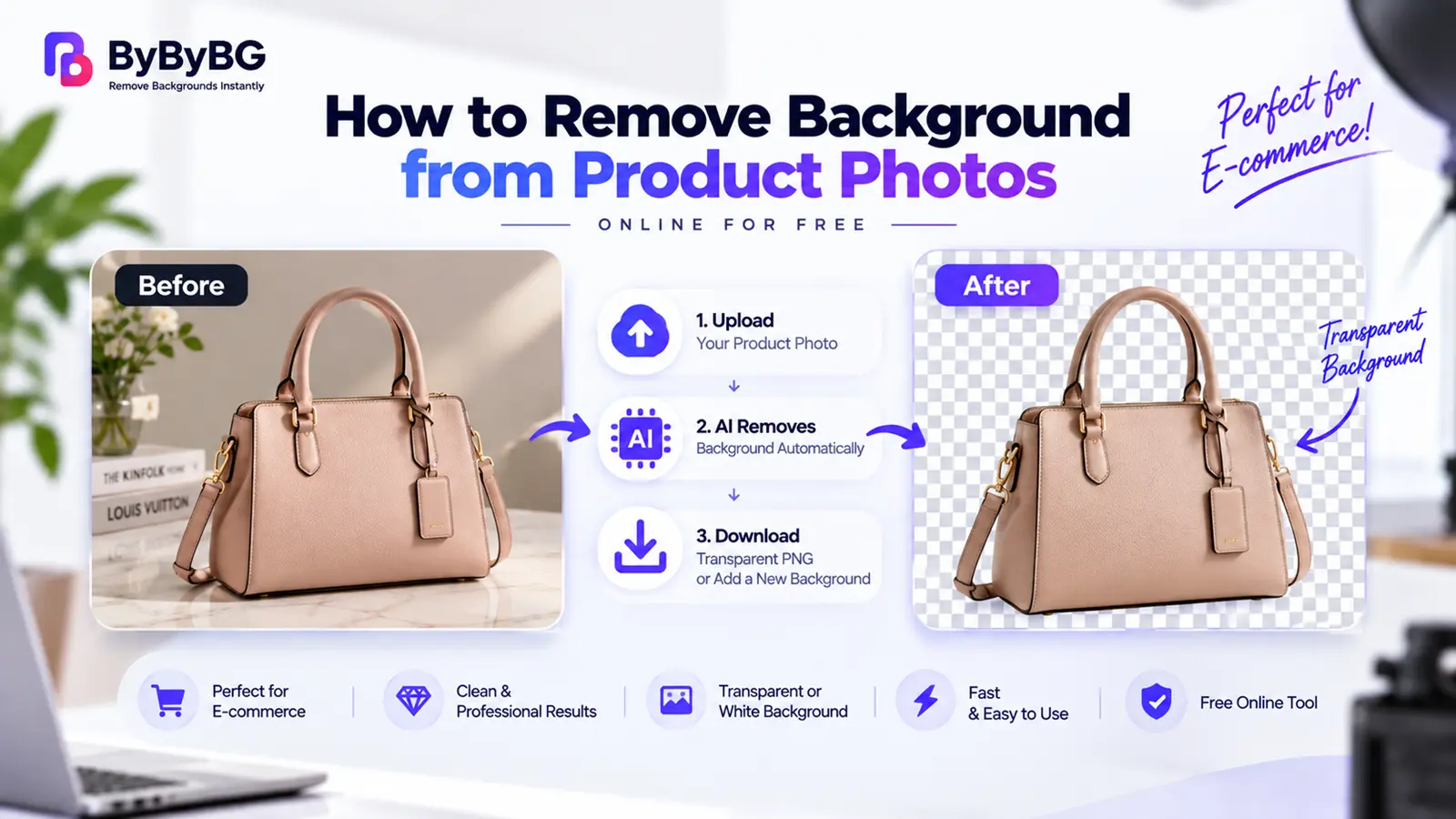
Short answer: You can remove the background from a product photo using an AI background remover that automatically identifies the product, separates it from the surrounding scene, and creates a clean cutout. The result can then be downloaded with a transparent background or placed on a suitable background for your store, catalog, or marketing design.
Remove Your Product Photo Background with ByByBG →
How to Remove Background from a Product Photo
Here's the general process, from raw photo to a clean, usable cutout:
Start with a photo where the product is clearly visible and in focus. A clean source image makes it easier for the AI to produce an accurate cutout.
Upload the photo to an online background remover such as ByByBG.
The AI automatically identifies the product and separates it from the surrounding background.
Zoom in and review the details that are easy to miss, including corners, labels, handles, straps, small gaps, and reflective areas.
Download the result, with a transparent background where that's what you need.
Depending on where the image will be used, place the cutout on a transparent, white, or branded background.
It's worth inspecting edges, labels, and small gaps after automatic removal rather than assuming every AI result is perfect — a quick check takes a few seconds and can catch issues before the image is published.
Why Remove Backgrounds from Product Photos?
Keep Attention on the Product
A busy or cluttered background can distract from the product itself. Removing it puts the focus back where it belongs.
Create a Consistent Product Catalog
A clean, consistent background treatment across multiple SKUs makes a catalog look more professional and cohesive.
Reuse the Same Product Cutout
Once a product is isolated, the same transparent cutout can be placed on white, brand colors, website designs, ads, or social media graphics — without reshooting.
Prepare Images for E-commerce
Product-background removal is widely used to prepare images for marketplace listings and storefront catalogs.
Transparent vs White Background for Product Photos
A transparent background is usually the better choice when the product needs to be reused across multiple designs. A white background is often more useful when a store or listing calls for a clean, neutral presentation.
How to Make a Product Photo Background Transparent
Product Photo → Product Detected → Background Removed → Transparent Area Created → Transparency-Supporting Format
Learn more in our guide: How to Make an Image Background Transparent
How to Make a Product Photo Background White
Original Photo → Remove Background → Isolate Product → Add Clean White Background → Export
Different marketplaces have their own product-image requirements, and these can vary or change over time — a white background isn't universally mandatory everywhere. Before publishing, check the current image rules for the platform you're selling on.
How to Remove Product Background with AI
• Image analysis
• Product detection
• Foreground/background segmentation
• Mask generation
• Edge refinement
• Background removal
• Transparent output
For a deeper explanation, see How AI Background Removal Works.
AI vs Manual Product Background Removal
AI is useful for fast, repeatable product cutouts, while manual editing remains valuable when a product has unusually difficult edges or needs precise retouching.
Product Background Removal Without Photoshop
You don't necessarily need a full desktop editor just to isolate a product. An online AI workflow can handle the whole process: upload, detect, remove, and download.
See our complete guide: How to Remove Background Without Photoshop
How to Remove Background from Clothing Product Photos
Fashion and apparel products — t-shirts, dresses, shoes, bags, jackets, and accessories — are some of the most common product photo categories.
Some details tend to need extra attention, including straps, lace, loose fabric, gaps, fur trim, and fine threads.
How to Remove Background from Jewelry Product Photos
Jewelry is one of the more detail-sensitive product categories. Common challenges include fine chains, small gaps, reflections, metallic edges, and gemstone transparency.
Because of these fine details, it's especially worth inspecting the AI result carefully before using it.
How to Remove Background from Electronics Product Photos
Products like phones, laptops, headphones, watches, and accessories often have relatively hard, well-defined edges, which can make them easier to process. Still, it's worth watching for issues around screens, reflections, cables, thin antennas, and shadows.
How to Remove Background from Transparent or Reflective Products
Glass bottles, sunglasses, perfume bottles, plastic packaging, reflective metal, and transparent containers are some of the more challenging product types to process.
Transparent and reflective products are harder because parts of the original background may be visible through, or reflected by, the product itself. AI may not always produce a perfect cutout for transparent or highly reflective products, so these images can benefit from extra inspection or manual refinement.
How to Remove Background from Product Photos for E-commerce
Product background removal supports a wide range of e-commerce use cases, including online stores, product pages, category pages, catalogs, marketplace listings, ads, and social commerce.
Imagine a catalog of 50 products where some have gray backgrounds, some are white, some show a room in the background, some have shadows, and some sit against colored walls. That kind of catalog looks visually inconsistent to a shopper. Clean product cutouts give you far more control over how the whole catalog presents itself.
Product Photos for E-commerce Marketplaces
E-commerce platforms and marketplaces can have different requirements for product images, including background treatment, dimensions, file formats, and image quality. These requirements may change over time, so check the current image guidelines for the platform where you plan to publish the product.
Should You Keep Product Shadows After Background Removal?
Not every shadow needs to be removed automatically.
• Natural shadow: Can make a product look grounded and more realistic.
• No shadow: Gives a clean, fully isolated cutout.
• Artificial or newly added shadow: Can be useful for marketing creative, when added deliberately.
Most importantly: background removal should not alter the actual product customers are buying. Accurate product representation matters, especially in an e-commerce context.
PNG vs JPG for Product Photos
• PNG: Supports transparency, produces clean product cutouts, and works well as a reusable asset.
• JPG: No transparency support; better suited to photographic or solid-background output, and often smaller depending on settings and content.
• WebP: A modern option for web use that can also support transparency.
See our detailed comparison: PNG vs JPG: Which Image Format Is Better for Your Images?
How to Take Better Product Photos Before Removing the Background
A better source photo generally leads to a better cutout:
• Use good lighting
• Keep the product in focus
• Avoid motion blur
• Capture enough resolution
• Don't crop important product edges out of frame
• Avoid unnecessary objects overlapping the product
• Use contrast between the product and background where practical
• Photograph transparent products carefully, minimizing distracting reflections
Common Product Background Removal Mistakes
• Mistake 1: Cutting off part of the product.
• Mistake 2: Losing thin edges, like straps or thin chains.
• Mistake 3: Removing holes or open spaces incorrectly.
• Mistake 4: Damaging logos or labels on the product.
• Mistake 5: Changing the product's actual color.
• Mistake 6: Ignoring problematic reflections.
• Mistake 7: Exporting a transparent cutout as a JPG, which loses the transparency.
• Mistake 8: Uploading the final image without reviewing the result first.
How to Remove Product Background on Mobile
For sellers working from a phone, the workflow stays the same:
• Open ByByBG
• Select the product image
• Upload it
• Let the AI process the image
• Inspect the result
• Download the cutout
How to Prepare Multiple Product Images Consistently
For catalog consistency across many product photos, aim for:
• Same canvas dimensions
• Similar product scale
• Consistent background treatment
• Consistent margins
• Similar shadow treatment (or none) across the set
• A consistent output format
• Similar image quality standards across the catalog
Does Removing a Product Background Reduce Image Quality?
Background removal itself doesn't necessarily require visible degradation, but the final quality depends on the source image, segmentation accuracy, edge processing, output resolution, compression, and export format.
Frequently Asked Questions
Upload the photo to an online AI background remover, let it detect and separate the product from the background, review the edges, and download the result.
Yes. ByByBG offers a free option for removing product photo backgrounds online, subject to the limits of the free plan.
Remove the background, then export or save the result as a PNG or another format that supports transparency, such as WebP.
Remove the original background, isolate the product, and place it on a clean white background before exporting.
Yes. AI background removers are commonly used for product photography across categories like clothing, electronics, and jewelry.
Yes. An online AI background remover can handle the process directly in your browser, without needing Photoshop or other design software.
PNG is generally best when transparency is needed. JPG works well for photographic images that don't require transparency, and WebP is a modern option that can support both.
It depends on the use case: PNG for transparent, reusable cutouts, and JPG for solid-background photographic images.
Yes, though fine chains, reflections, and small gaps are more challenging, so it's worth checking the result closely.
AI can process glass and reflective products, but results can be less consistent, since parts of the original background may show through or reflect off the product.
Yes. Tools like ByByBG work in a mobile browser, so you can process product images directly from your phone.
It depends on the use case: transparent backgrounds are more flexible for reuse across designs, while white backgrounds are common for clean, finished product listings.
Not inherently — quality mainly depends on the original resolution, processing accuracy, and export settings.
It depends on the goal. A natural shadow can make a product look grounded, while a fully isolated cutout with no shadow offers maximum flexibility for reuse.
Conclusion
Removing the background from a product photo comes down to a simple sequence: upload the image, let AI detect and isolate the product, check the edges and fine details, and export it in the right format for your needs — transparent for flexible reuse, or white for a clean, finished listing. Done well, this gives online sellers and brands a consistent, professional-looking catalog without reshooting every product.
The goal of background removal is to cleanly isolate the product — not to change its shape, label, color, or included parts. That distinction matters, especially for accurate e-commerce product imagery.
Ready to try it yourself? Remove Your Product Photo Background with ByByBG →