
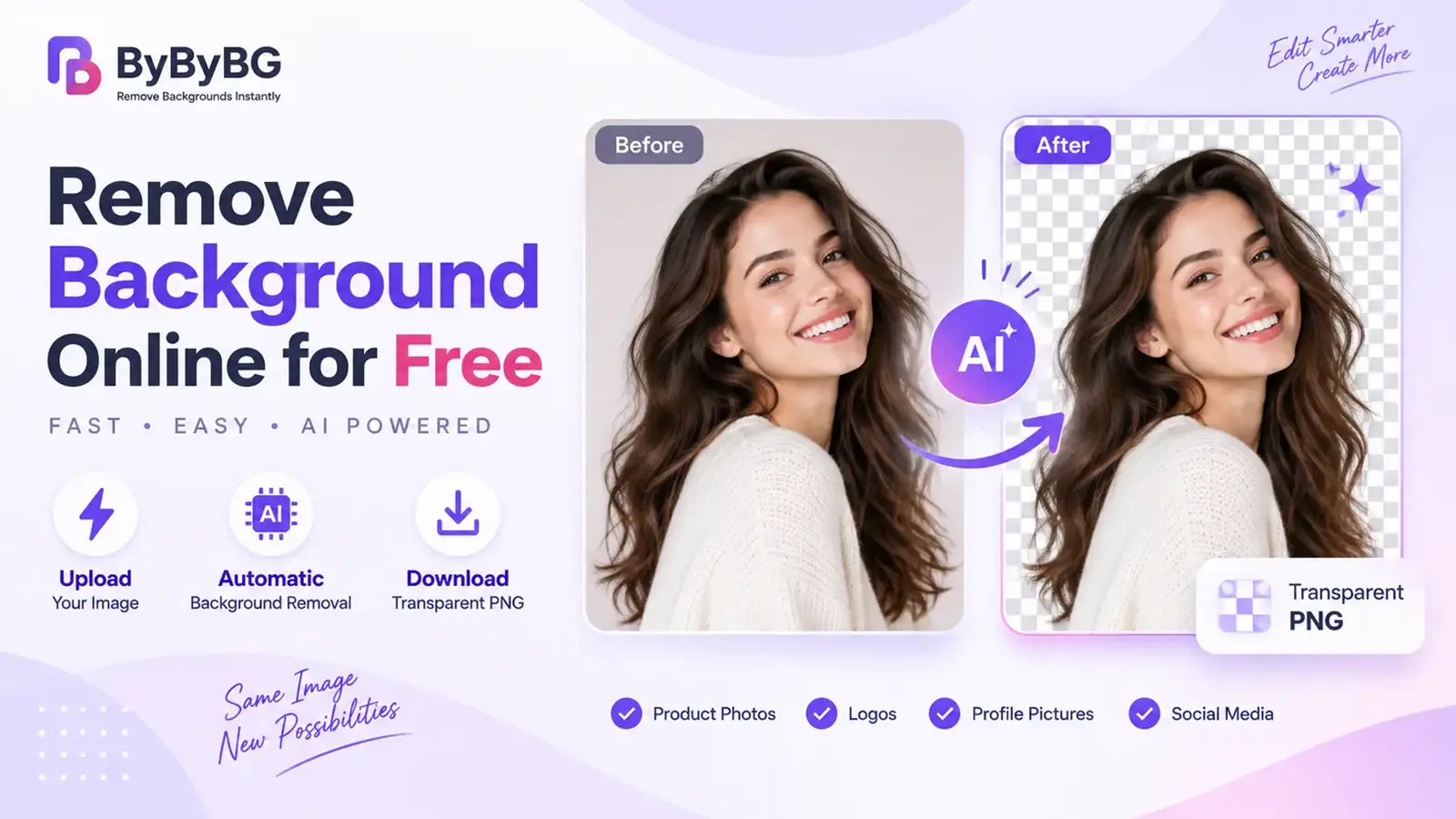
Want to remove the background from an image without Photoshop? You can use an online AI background remover to automatically isolate the subject and create a transparent image in seconds. Simply upload your photo, let the AI detect the subject, and download a clean, transparent PNG — no design skills or software installation required.
Try ByByBG Background Remover →
Introduction
Removing the background from an image used to mean opening Photoshop, manually tracing around a subject with the pen tool, and spending several minutes on a single photo. Today, that process has largely been replaced by online AI background removers that can isolate a subject and produce a transparent image in a matter of seconds.
This guide walks through how to remove a background from an image online for free, how AI background removal actually works, and which image format to use once the background is gone. Whether you're preparing a product photo for an online store, cleaning up a profile picture, or making a logo background transparent, the same basic workflow applies: upload, let the AI detect the subject, remove the background, and download a transparent PNG — no Photoshop required.
How to Remove Background from an Image Online for Free
Most online background removers follow the same basic workflow. Here's what the process typically looks like:
1. Upload your image. Choose the photo you want to edit and upload it to the background remover.
2. Let AI detect the subject. The tool automatically analyzes the image and identifies the main subject, separating it from the background.
3. Remove the background. The background is removed automatically, leaving a transparent area behind the subject.
4. Check the edges. Zoom in on fine details such as hair, fur, or thin object edges to make sure the cutout looks clean.
5. Download the transparent image. Save the result, typically as a PNG file, so the transparency is preserved.
Remove Your Image Background with ByByBG →
What Is an Online Background Remover?
An online background remover is a web-based tool that automatically identifies the main subject in a photo and separates it from everything behind it. Instead of manually selecting pixels one by one, the tool uses image recognition to detect where the subject ends and the background begins, then removes the background and replaces it with a transparent area.
The output is usually a PNG file with an alpha channel, which allows the subject to be placed on any background — a solid color, another photo, or a design layout — without a visible box or edge around it.
How Does an AI Background Remover Work?
AI background removal generally happens in a few stages. Understanding these stages makes it easier to get better results and to troubleshoot images where the cutout doesn't look quite right.
Image Upload
The process starts when an image is uploaded to the tool, either from a device, a cloud drive, or a direct link.
Subject Detection
The AI model analyzes the image to identify the main subject — a person, product, animal, or object — and distinguishes it from the surrounding background.
Background Separation
Once the subject is detected, the tool creates a mask that separates the subject from the surrounding background.
Edge Refinement
Fine details such as hair strands, fur, or semi-transparent edges (like glass or fabric) are refined so the cutout looks natural rather than harshly clipped.
Transparent Image Generation
Finally, the background area is made transparent and the image is generated as a file — typically a PNG — that preserves that transparency for later use.
What Types of Images Can You Remove Backgrounds From?
Background removal works across a wide range of image types. Some of the most common use cases include:
Product Photos
Especially useful for e-commerce, where products often need a consistent, clean background across a catalog or storefront.
Portraits
Profile pictures, headshots, and ID-style photos where the person needs to be isolated from a busy or distracting background.
Logos
Removing a solid background color from a logo so it can be placed on different colored surfaces or materials.
Pets and Animals
Photos of pets or animals, where fine details like fur can be more challenging but modern AI models handle them reasonably well.
Clothing and Fashion Photos
Isolating garments or accessories from a background for catalogs, listings, or marketing material.
Social Media Images
Creating graphics, thumbnails, or profile assets that need a subject lifted out of its original photo.
Real Estate / Product Images
Isolating objects, furniture, or property features for use in listings, presentations, or design mockups.
Why Remove the Background from an Image?
One of the biggest advantages of background removal is flexibility. Once the subject is isolated, you can place it on a different color, create a product listing image, add it to a marketing design, or reuse it across multiple platforms without recreating the original image.
How to Make an Image Background Transparent
Background removal and a transparent background are related but not always the same thing, depending on the workflow. Removing a background typically means isolating the subject from what's behind it. Making that background transparent means the removed area is stored as empty, see-through space rather than being filled in with a solid color.
Once a background has been removed, saving the result in a format that supports transparency matters. PNG is generally useful here because it supports an alpha channel, which allows the transparent area to be preserved when the image is saved, shared, or placed on a new background.
Want to learn why PNG is usually preferred for transparent images? Read our guide to PNG vs JPG.
PNG vs JPG After Removing a Background
Once a background has been removed, the format you choose to save the image in affects whether that transparency is actually preserved.
JPG does not support transparency, so saving a transparent cutout as a JPG will not retain the transparent areas — they will typically be filled in with a solid color instead. If you need the transparent background to carry over, PNG (or a transparent WebP) is the appropriate choice.
PNG vs WebP for Background-Removed Images
PNG is a common choice for background-removed images because it supports transparency and is widely compatible. WebP also supports transparency and can often produce a smaller file, which can be useful for websites. If compatibility is the main concern, PNG is usually the safer choice; if website performance and smaller files are priorities, transparent WebP may be worth considering.
Can You Remove a Background Without Photoshop?
Yes. Modern online AI tools can automatically detect the main subject in a photo and remove the surrounding background without requiring manual selection tools, layers, or masking — the kind of manual work traditionally associated with Photoshop. This makes background removal accessible to anyone, regardless of design experience.
Try ByByBG →
How to Remove Background from an Image on Mobile
Background removal isn't limited to desktop computers. Many online background removers, including ByByBG, work directly in a mobile browser, so you can remove a background from your phone without installing a separate app.
1. Open ByByBG in your mobile browser.
2. Upload the image from your phone's gallery or camera.
3. Let the tool process the image.
4. Preview the result and check the edges.
5. Download the transparent image to your device.
How to Remove Background from a Product Photo
Product photos are one of the most common reasons people search for a background remover, since a clean, consistent background is often expected across an online store or marketplace listing.
This is especially useful for sellers on platforms such as Amazon, Shopify, or Daraz, as well as independent e-commerce stores, catalogs, and advertisements. Marketplace image requirements — such as background color rules or minimum resolution — vary and change over time, so it's worth checking a platform's current guidelines directly rather than assuming they stay the same.
How to Remove Background from a Portrait
Portraits are another common use case, particularly when a photo needs to look clean and professional without a distracting background.
• LinkedIn and professional profile photos
• CVs and resumes
• Social media profile pictures
• ID photos and design projects
How to Remove Background from a Logo
Logos are frequently supplied with a white or solid-colored background, which can look out of place when placed on a colored surface, product, or website section. Removing that background — and saving the result as a transparent PNG — allows the logo to be placed cleanly on any background color.
Removing a logo's background is a common use case when the logo needs to work across different backgrounds, packaging designs, or website sections. Saving the result as a transparent PNG makes it easier to reuse without a solid-colored box around it.
Can You Remove a Background for Free Without a Watermark?
This is one of the most important questions people ask before choosing a background remover, since some free tools add a watermark or limit resolution unless you upgrade to a paid plan.
Yes, ByByBG lets you remove image backgrounds without adding a watermark.
Is It Safe to Remove Backgrounds Online?
Privacy is a reasonable concern when uploading personal or product images to any online tool. In general, it's worth understanding how an image-processing tool handles your files, including whether images are uploaded to a server, how long they're stored, and when they're deleted.
With ByByBG, image processing follows our stated privacy practices, and we recommend reviewing our privacy policy for the specifics of how uploaded images are handled and how long they're retained.
What Makes a Good Background Removal?
A good background removal should preserve the important details around the subject while removing unwanted areas cleanly. Look for natural edges around hair, fur, fingers, thin objects, and other fine details. A good result should also avoid leftover background patches, visible halos, or parts of the subject being accidentally removed.
Tips for Getting Better Background Removal Results
• Use a clear subject. Photos where the subject is clearly distinguishable tend to produce cleaner cutouts.
• Avoid extremely blurry images. Sharper source images give the AI more detail to work with at the edges.
• Use sufficient resolution. Very low-resolution images can make fine edges harder to refine accurately.
• Ensure contrast with the background. A subject that stands out clearly from its background is easier for AI to detect precisely.
• Check hair and fine edges. Zoom in on detailed areas like hair or fur to confirm the cutout looks natural.
• Preview before downloading. Always review the result so you can catch any areas that may need a manual touch-up.
What If the Background Removal Isn't Perfect?
AI background removal is not perfect for every image. Problems are more likely when the subject blends into the background, the image is very blurry, lighting is poor, or fine details are difficult to distinguish. If the result is not clean, try a higher-resolution source image, improve the contrast between the subject and background, or use an image with a simpler background.
What Is the Best Free Online Background Remover?
The best free background remover depends on factors such as cutout quality, supported image formats, transparency, processing speed, watermark policies, and privacy practices. For simple background removal, an online AI tool can be much faster than manual editing software.
ByByBG is designed to provide a simple upload-and-remove workflow without requiring complex editing software.
Frequently Asked Questions
How can I remove the background from an image online for free?
Upload your image to an online AI background remover, let it automatically detect the subject, and download the resulting transparent image — no software installation required.
What is the best free background remover?
The best option depends on your needs, but a good free background remover should be easy to use, produce a clean transparent output, and ideally avoid adding a watermark. ByByBG is built around this approach.
Can I remove an image background without Photoshop?
Yes. Online AI background removers can automatically detect and remove a background without any manual selection tools or design software.
Can I remove a background from a JPG?
Yes. A JPG can be uploaded to a background remover, and the subject will be extracted the same way as with other formats. The output is typically saved as a PNG so the transparency is preserved.
Can I make a JPG background transparent?
Not directly. Standard JPG does not support transparency. After removing the background, save the result as a PNG (or another format that supports an alpha channel) to keep the transparent area.
What format should I use for a transparent background?
PNG is the most widely compatible choice for transparent images. WebP also supports transparency and can offer smaller file sizes on modern websites.
Can I remove a background from an image on my phone?
Yes. Many online background removers, including ByByBG, work in a mobile browser, so you can upload, process, and download images directly from your phone.
Can I remove the background from a product photo?
Yes. Product photos are one of the most common use cases for background removal, particularly for e-commerce listings and catalogs.
Can I remove a logo's background?
Yes. Removing a logo's background and saving it as a transparent PNG allows the logo to be placed on any background color or design.
Does background removal reduce image quality?
Background removal does not inherently require heavy image compression, but the final result can be affected by the original image resolution, processing method, resizing, and output format. Using a high-quality source image and an appropriate output format can help preserve detail.
Can I remove an image background without a watermark?
Yes, with ByByBG you can remove image backgrounds without a watermark being added to the result.
Is online background removal safe?
It depends on the specific tool's privacy practices, including how images are processed and whether or how long they're stored. Review the tool's privacy policy for specifics before uploading sensitive images.
Can AI remove complicated backgrounds?
Modern AI background removers can generally handle complex backgrounds and fine details like hair, but results can vary based on image quality, contrast, and how distinct the subject is from its surroundings.
Conclusion
Removing the background from an image no longer requires Photoshop or design experience. An online AI background remover can detect a subject, isolate it from its background, and generate a transparent image in seconds — whether you're working with a product photo, a portrait, or a logo.
Once the background is removed, saving the result as a PNG or transparent WebP keeps the transparent area intact and makes the subject easy to reuse in new designs, product listings, and other projects.
Ready to try it yourself? Remove Your Image Background with ByByBG →