
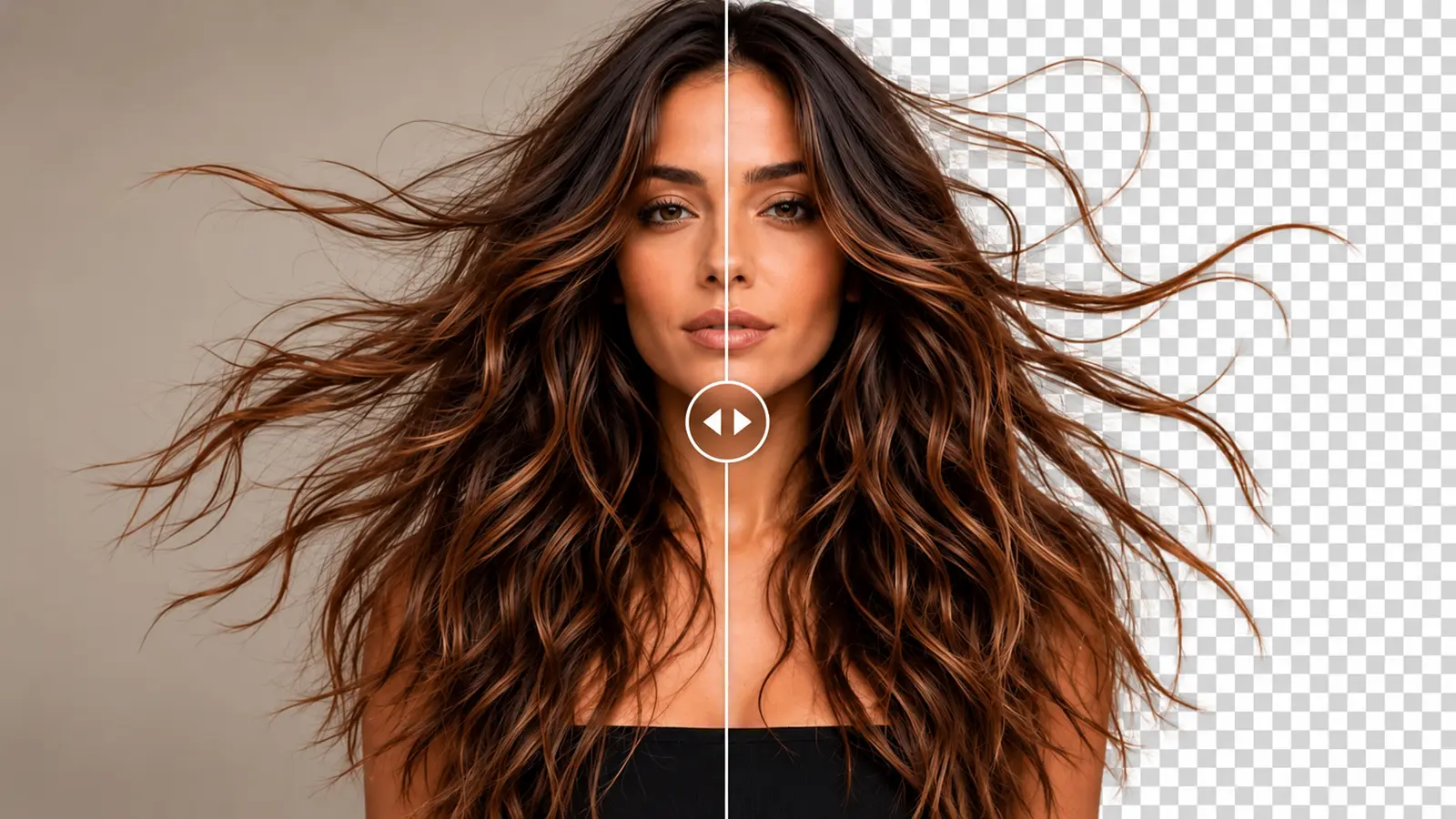
Removing a photo background becomes more challenging when the subject has long, curly, frizzy, or flyaway hair. Unlike solid objects, hair contains fine strands and partially transparent edges that can blend into the surrounding background. AI background removal can simplify the process, but getting natural-looking results requires a good source photo and careful attention to hair edges. In this guide, you'll learn how to remove the background around hair, preserve important details, and troubleshoot common problems.
Remove Hair Background with AI→
How to Remove Background from Hair in 5 Steps
Choose a high-quality portrait. Select an image where the hair is clearly visible and not excessively blurred.
Upload your photo to ByByBG. Open the background remover in your browser and select a supported image.
Start AI background removal. Allow the tool to process the subject and surrounding background.
Inspect the hair edges. Zoom in to check fine strands, flyaways, halos, and missing details.
Download the transparent PNG. Test the cutout against light and dark backgrounds before final use.
ByByBG currently accepts JPG, JPEG, PNG, and WebP images up to 10 MB. A dedicated manual hair-refinement brush or advanced masking controls aren't part of the current workflow, so for especially difficult strands, a separate graphics editor may still be needed.
Why Is Hair Background Removal So Difficult?
Individual hair strands can be only a few pixels wide
Some strands are partially transparent
Hair and background colors may be similar
Motion blur can hide strand boundaries
Fine flyaways may blend into the background
Highlights and shadows complicate separation
The main takeaway: hair is not always a simple foreground-versus-background problem the way a solid object is.
What Is Hair Masking?
Hair masking means identifying which image pixels belong to hair and how much of each pixel should remain visible. A few terms come up often in this context:
Foreground. The subject you want to keep — in this case, the person and their hair.
Background. Everything meant to be removed.
Mask. A map of which pixels belong to the foreground.
Alpha channel. The part of an image file that stores transparency information for each pixel.
Soft transitions. Gradual changes between visible and transparent, rather than a hard on/off edge — important for fine hair.
Hair Masking vs Background Removal
Modern background-removal systems often use segmentation and matting together rather than as two completely separate tools, so this distinction is more about the kind of challenge involved than two unrelated processes.
How AI Detects Hair and Background
Segmentation. Identifies the general regions that belong to the subject.
Matting. Estimates partial transparency around complex boundaries, like fine hair.
Edge refinement. Improves boundaries where the processing system supports it.
These are general computer-vision concepts rather than a description of any single tool's internal method — ByByBG doesn't claim a specific proprietary model or a dedicated hair-refinement algorithm.
How to Remove Background from Fine Hair
Fine hair is difficult to process cleanly because:
Strands are thin
Edges may be semi-transparent
Low-resolution images lose detail
Strands can overlap the background
Recommended practices:
Use a high-resolution original
Avoid compressed screenshots
Choose photos with clear lighting
Inspect strands at 100% zoom
Use manual masking if the automatic result isn't sufficient
How to Remove Background from Flyaway Hair
Flyaway hair refers to small strands extending away from the main hairstyle. These create a few specific challenges:
Thin, isolated strands
Blending with the background
Soft focus
Hair crossing facial features
Preserving every single flyaway isn't always realistic, especially when the source photo simply doesn't contain enough visual information to separate a strand from what's behind it.
How to Remove Background from Curly Hair
Curly hair introduces its own set of challenges:
Complex outer silhouettes
Gaps between curls
Overlapping strands
Small background pockets
Uneven edges
Background can remain visible between individual curls, not just around the outer outline. A good cutout preserves these internal gaps where they genuinely exist, rather than filling them in.
How to Remove Background from Frizzy Hair
Frizzy hair tends to involve a diffuse outer boundary, many irregular fine strands, soft and scattered texture, and complex transparency throughout the edge.
It's best to avoid aggressive edge smoothing in this case — smoothing can make the cutout look cleaner at a glance, but it also removes the natural texture that makes frizzy hair look real.
How to Remove Background from Long Hair
Long hair introduces a few extra areas to check beyond the head itself:
Hair crossing the shoulders
Hair over clothing
Strands extending outside the body silhouette
Hair overlapping the arms
Long, loose ends
Check the entire hairstyle in the result, not just the area around the head.
How to Remove Background from Short Hair
Short hair is generally easier to process, but it can still create difficulties with spiky styles, buzz-cut edges, fine baby hairs, textured hairlines, and hair that blends into skin or the background.
How to Remove a White Background from Hair
White backgrounds can be especially challenging for blonde hair, gray hair, white hair, light highlights, and fine translucent strands.
Why this happens: a light-colored subject against a light-colored background gives the model fewer clear visual boundaries to work with than a higher-contrast scene.
For more on this general case, see How to Remove White Background from an Image.
How to Remove a Dark Background from Black Hair
This is the opposite version of the same problem. Black hair against a black or dark background can lose its outer silhouette, thin strands, dark curls, hair volume, and natural texture.
Where possible, using an original image with better lighting or background contrast tends to produce a cleaner result than trying to fix low-contrast source images after the fact.
How to Remove a Colored Background from Hair
Common examples include a green studio background, a blue background, a red background, or a gradient background.
Worth knowing: a strand can contain blended color picked up from the original background, which may remain faintly visible even after the background itself has been removed.
How to Preserve Individual Hair Strands
A few reasons this matters more than it might seem:
Individual strands carry much of what makes a hair cutout look natural
Hard-edge cutouts around hair tend to look unnatural
Alpha transitions — gradual, not abrupt — matter for realistic edges
A sharp, high-quality source with sufficient resolution can help preserve fine strand detail, although resolution alone does not guarantee a better cutout.
Manual refinement may still be necessary for difficult images
Important: a natural hair cutout does not require every strand to be fully opaque. Fine hair can genuinely have soft, partially transparent edges.
How to Preserve Natural Hair Transparency
A pixel in a transparent image can be fully opaque, partially transparent, or fully transparent. Hair edges frequently contain partially transparent pixels as a natural, correct part of the result.
It's worth not confusing partially transparent hair with background contamination — the two can look similar at a glance but mean very different things about the quality of the cutout.
How to Avoid White Halos Around Hair
White halos around hair can come from a few sources:
White background contamination
Poor matting
Anti-aliased source edges
JPEG artifacts
Incomplete removal
A useful test: place the transparent portrait over a dark blue background. If white fringes appear around the hair, the edges likely still contain unwanted light pixels.
For more troubleshooting tips, see How to Get Better AI Background Removal Results.
How to Fix Dark Edges Around Hair
Dark halos tend to occur when a portrait originally had a dark background, and usually come down to dark-pixel contamination, incomplete edge separation, hard outlines, or a contrast mismatch between the hair and what was behind it.
Potential solutions include starting from a better source photo or using a graphics editor with edge-decontamination or matting tools — ByByBG doesn't currently provide those specific manual controls, so difficult cases may need a dedicated editor.
Why Hair Looks Cut Off After Background Removal
A few common causes:
Low contrast between hair and background
Low resolution
Motion blur
Hair strands extending outside the main silhouette
The AI treating fine strands as background
A few things that can help:
Try a clearer source image
Use a higher resolution original
Avoid aggressive resizing before upload
Inspect the original photo closely before processing
Manually refine particularly difficult areas afterward
Why Hair Edges Look Blurry
It helps to distinguish between naturally soft hair edges and unwanted blur. Natural semi-transparency can look soft around the edges without actually being incorrect.
Unwanted blur, on the other hand, is more often caused by:
Motion blur in the source photo
Resizing
Low-quality extraction
Excessive smoothing
Poor export settings
How to Avoid Jagged Hair Edges
Jagged edges around hair usually trace back to pixelation, aliasing, small source dimensions, aggressive hard-edge masks, or upscaling artifacts.
It's worth being clear that a larger output dimension alone does not restore strand detail that was never captured in the original photo.
How to Remove Background from Hair Without Photoshop
A browser-based AI background remover can be a convenient option for many everyday portraits without requiring Photoshop. However, complex hair edges and difficult source images may still benefit from manual refinement in a dedicated image editor.
A few options worth knowing about:
An online AI background remover like ByByBG
Built-in subject cutout features on supported devices
Alternative graphics editors
Manual masking, when precision is genuinely required
For a broader comparison, see How to Remove Background Without Photoshop.
How to Remove Hair Background on Android
Open ByByBG in Chrome or another compatible browser.
Select a portrait from your phone's gallery.
Upload the photo.
Start background removal.
Inspect the hair cutout closely, especially around flyaways and fine strands.
Download the transparent PNG.
Check the downloaded file in a compatible viewer that actually renders transparency.
The exact save location can vary by device and browser, so there's no single Downloads-folder path that applies to every Android phone.
How to Remove Hair Background on iPhone
The workflow is similar through Safari: select the photo, upload it, let the AI process it, download the PNG, and verify the transparency afterward.
Built-in iPhone subject lifting may work reasonably well for some portraits on supported devices, but it doesn't guarantee precise preservation of every hair strand the way a dedicated inspection step can confirm.
For the full mobile walkthrough, see How to Remove Background from Photos on Mobile.
Best Photo Conditions for Accurate Hair Removal
Good lighting
Sharp focus
Visible hair edges
Reasonable contrast between hair and background
Minimal motion blur
An original, high-quality photo rather than a compressed copy
An unobstructed hairstyle
Avoiding heavy compression before upload
Complex backgrounds can still work reasonably well, but a clearer separation between subject and background generally helps the result.
Common Hair Background Removal Problems
Does Hair Color Affect Background Removal?
Yes, but primarily through contrast and image characteristics rather than color itself. Examples include blonde hair on white, black hair on black, red hair on red, and gray hair on gray.
No hair color is inherently impossible to remove cleanly — the real issue is usually insufficient visual separation between the subject and the background, which can happen with any color pairing.
Does Hair Texture Affect AI Background Removal?
Straight, wavy, curly, coily, fine, and frizzy hair all create different edge patterns and gaps along the boundary. The goal in each case is to preserve that hairstyle's natural appearance, not to smooth every hairstyle into the same simplified outline.
Does Image Resolution Affect Hair Background Removal?
A higher resolution can preserve more visible detail, provided the source is genuinely sharp to begin with. But it's worth keeping a few limits in mind:
Higher resolution doesn't guarantee a better result on its own
Upscaling can't reliably recreate strand detail that was already lost
Background contrast and motion blur matter just as much as resolution
Excessive compression can damage fine edges even in a large image
How to Save Hair with a Transparent Background
The basic workflow: original portrait → AI removal → hair-edge inspection → transparent PNG.
PNG supports alpha transparency, while JPG doesn't support normal alpha transparency at all. A white-looking preview in some viewers doesn't necessarily mean the transparency is missing — it can simply be how that app displays transparent pixels.
Learn more in What Is a Transparent PNG?.
PNG vs WebP for Transparent Hair Images
Both PNG and WebP can support transparency. PNG is a convenient, widely compatible choice for reusable cutouts and many editing workflows, while WebP is useful for optimized web delivery when the transparency is preserved correctly.
ByByBG's current output workflow delivers PNG files, so a direct WebP download isn't part of the process at this time.
For a deeper comparison, see PNG vs WebP.
Where Can You Use Transparent Hair Photos?
Portrait designs
Professional profile graphics
Beauty salon marketing
Hairstyle catalogs
Social media thumbnails
Website banners
Product promotions
Presentation designs
Photo composites
Creative posters
A cutout that looks clean on a white page can still reveal edge defects on a dark or colored background, so it's worth checking the result against the actual background you plan to use.
AI Hair Background Remover vs Manual Hair Masking
AI is useful for speed and convenience, while manual refinement remains valuable when exact hair edges really matter — the two aren't mutually exclusive, and many workflows use both.
Remove Hair Background Online with ByByBG
Need to remove the background from a portrait with detailed hair? Try ByByBG's AI background remover. Upload your photo, generate a transparent cutout, inspect the hair edges, and download your PNG.
Remove Hair Background with AI→
Frequently Asked Questions
How do I remove a background from hair?
Upload a clear portrait to an online background remover like ByByBG, let the AI process it, inspect the hair edges carefully, and download the result as a transparent PNG.
Can AI remove backgrounds around fine hair?
Yes, though results depend heavily on the source photo. A sharp, well-lit original with reasonable contrast between hair and background tends to give the cleanest result.
How do I remove a background without losing hair strands?
Use a high-resolution, in-focus original photo, avoid heavy compression, and inspect the fine strands closely in the result before downloading.
How do I remove a background from curly hair?
The process is the same as for any portrait, but it's worth checking the gaps between individual curls specifically, since background can remain visible there.
How do I remove a background from frizzy hair?
Use a sharp original and avoid expecting a perfectly smooth outline — natural frizzy texture includes soft, irregular edges that shouldn't be smoothed away.
How do I remove a background from flyaway hair?
Flyaway strands are some of the hardest details to preserve fully, especially thin or faint ones. A sharper, higher-resolution original improves the odds of keeping more of them.
Why does AI background removal cut off hair?
This usually happens due to low contrast, low resolution, motion blur, or fine strands extending beyond the main silhouette that the AI treats as background.
How do I fix white edges around hair?
Test the cutout over a dark background to spot white fringing, and refine the edges where background contamination remains.
How do I fix dark halos around hair?
Dark halos usually come from a dark original background bleeding into the edges. A better-contrast source photo or manual edge cleanup in a graphics editor can help.
Can I remove a hair background without Photoshop?
Yes. A browser-based AI tool like ByByBG can remove a hair background directly, without needing Photoshop or any other image-editing software.
How do I make hair background transparent?
Remove the background with an AI tool and save the result as a PNG, which supports transparency — avoid converting it to JPG afterward.
Does hair color affect background removal?
It can, mainly through contrast with the background rather than the color itself — for example, light hair on a light background or dark hair on a dark background is more challenging than a higher-contrast pairing.
Can I remove a hair background on Android?
Yes. Open ByByBG in Chrome or another Android browser, upload the portrait, process it, and download the transparent PNG — no app installation required.
Can I remove a hair background on iPhone?
Yes. Open ByByBG in Safari, upload the photo from your Photos or Files app, process it, and download the result.
What is the best image format for transparent hair?
PNG is the most practical and widely supported choice for a transparent hair cutout. WebP can also preserve transparency, but ByByBG's current downloads are delivered as PNG.
Conclusion
Removing the background around hair is more demanding than a typical cutout, since fine strands, flyaways, and soft edges all need careful attention rather than a single hard boundary. Starting with a sharp, well-lit photo and inspecting the result against both light and dark backgrounds will catch most problems before you use the final image. AI background removal can handle most of the work — just don't expect every single strand to come out perfectly on a difficult source photo.
Ready to try it? Remove Hair Background with AI→