
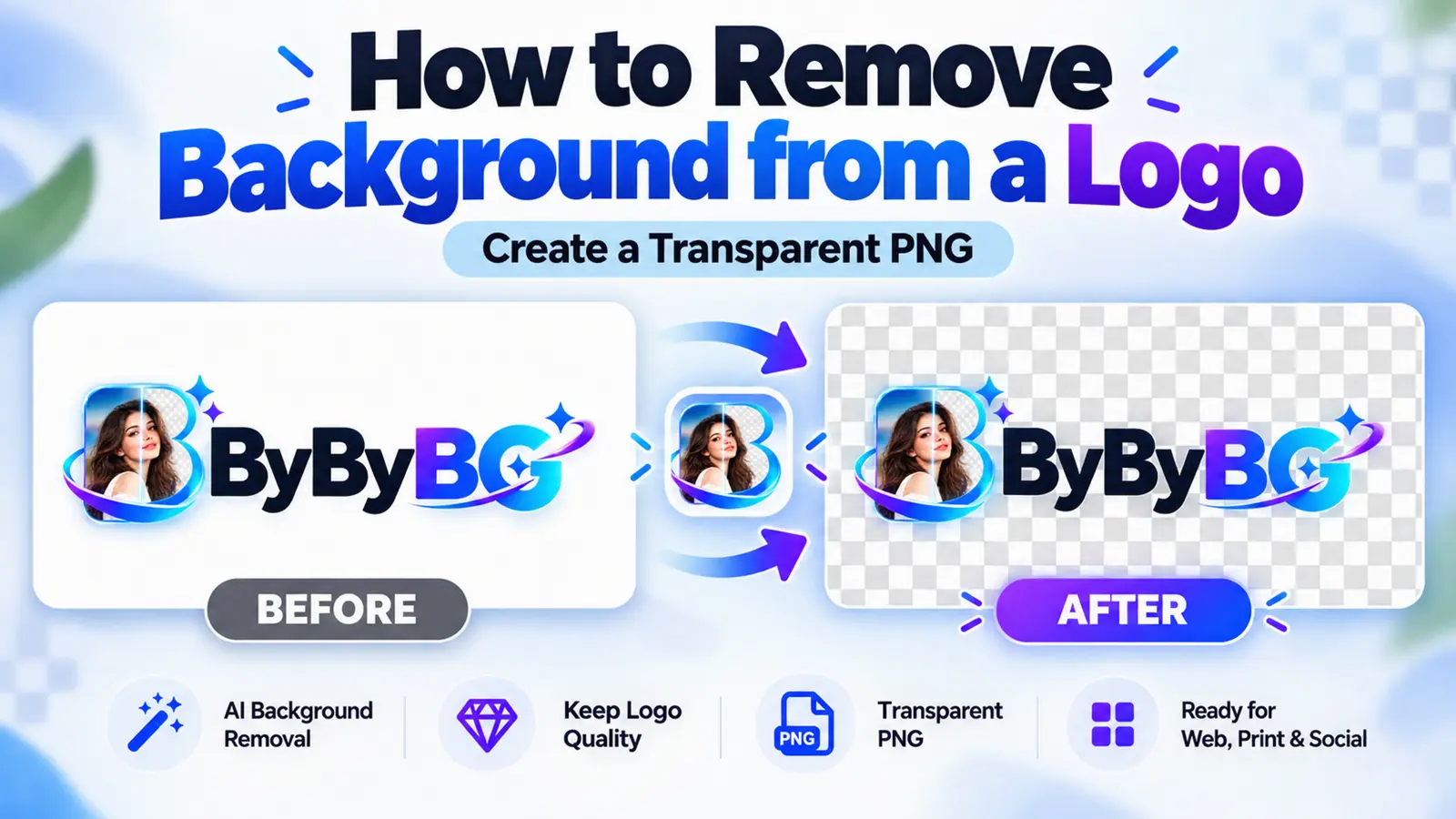
A transparent logo can be placed on websites, business cards, social media graphics, presentations, and product designs without an unwanted white or colored rectangle behind it. If your logo has a solid background, an AI background remover can help you create a transparent PNG. However, if you already have an original vector file or a transparent version of the logo, using that source is usually preferable because it preserves the intended design details.
Make Your Logo Background Transparent →
How to Remove a Background from a Logo in 5 Steps
Choose your logo image. Use the highest-quality original file you have — JPG, PNG, or another supported image format.
Upload to ByByBG. Open the background remover in your browser and upload the logo.
Remove the background. Let the AI process the image and detect the logo as the subject.
Inspect the transparent result. Check letters, colors, thin lines, and interior spaces carefully before downloading.
Download the PNG. Save the transparent logo and test it on a colored background.
A quick note before you start: always check ByByBG's current supported file formats and upload size limits, since these can vary by tool and change over time.
What Is a Transparent Logo?
A transparent logo is a logo without a fixed visible background, allowing the design behind it to show through — a page color, a product mockup, or another image. Instead of a white or colored box sitting behind your logo, only the logo artwork itself remains visible.
For a broader explanation of how this works at the file level, see What Is a Transparent PNG?.
Not Every Logo File Needs Background Removal
Before removing anything, it's worth checking what kind of file you actually have, since not every case calls for the same approach:
Already a transparent PNG? No removal is needed — it's ready to use.
An original vector file (SVG) is available? It's often better to use that directly rather than rasterizing and running background removal.
Only a JPG or a PNG with a solid background? This is the case where background removal is genuinely useful.
A screenshot of a logo? It can work, but quality and edge accuracy will depend heavily on the screenshot's resolution.
Starting with the right source file is one of the most important ways to preserve logo quality during background removal. A clean, high-resolution original generally gives you a better starting point than a small screenshot or heavily compressed image.
How to Remove a White Background from a Logo
This is one of the most common logo scenarios — a black logo on white, a colored brand mark on white, a signature-style logo, or a company name sitting on a plain white box.
A key distinction to understand: white background pixels and white design pixels aren't automatically the same thing. If your logo itself contains white text or white shapes, an automatic tool needs to tell those apart from the white background around them — and that distinction can be genuinely difficult.
A few practical tips:
Use the original, high-resolution logo rather than a compressed copy
Check white text and interior details closely in the result
Test the output on a dark background to reveal anything that was missed
Use manual refinement in an image editor when the AI can't cleanly separate the two
For more on this specific case, see How to Remove White Background from an Image.
How to Remove a Black Background from a Logo
Black-background logos deserve their own section because they often include white typography, neon-style designs, glowing edges, dark brand elements, or shadows — all of which can complicate automatic removal.
Potential problems to watch for:
Dark design elements accidentally removed along with the background
White text preserved, but with rough or jagged edges
A glow effect partially lost
Dark borders disappearing into the background
If the background and the logo itself share similar dark tones, automatic removal may struggle to tell the two apart — this is worth checking closely in the result rather than assuming it worked.
How to Remove a Colored Background from a Logo
Examples include a red logo on a yellow background, a blue logo on green, or a multicolor logo on a gradient background.
A solid, contrasting background is usually the easiest case to handle well. Gradients, and backgrounds that share colors with the logo itself, are more likely to introduce small errors around the edges — so it's worth comparing a solid-color source against a gradient one if you have a choice.
How to Remove Background from a JPG Logo
JPG doesn't support ordinary transparency, so the workflow here is straightforward: upload the JPG logo, remove the background, and export the result as a transparent PNG.
A few things worth watching for with JPG sources specifically:
Heavy JPG compression can create faint halos around edges
Small text can lose sharpness during processing
A low-resolution JPG won't become genuine vector-quality artwork just by converting it to PNG
How to Remove Background from a PNG Logo
An important misconception to clear up: PNG does not automatically mean transparent. A PNG file can still contain a solid white or colored background baked into its pixels.
The practical workflow:
Check whether transparency already exists in the file
If it doesn't, run background removal
Export the result as a transparent PNG
Verify the result before using it
Learn more in What Is a Transparent PNG?.
How to Remove Logo Background Without Photoshop
If your goal is simply to remove a background, you don't need Photoshop to do it. A browser-based AI tool like ByByBG can handle the task directly, an existing transparent or vector original may already solve the problem, and a graphics editor with masking or color-selection tools remains an option for more hands-on control.
For a full comparison of approaches, see How to Remove Background Without Photoshop.
How to Make a Logo Transparent on Mobile
The same basic workflow applies on Android and iPhone: open the tool in your mobile browser, upload the logo, remove the background, preview the result, and download the PNG.
A few mobile-specific tips:
Use the original logo file rather than a screenshot when possible
Avoid saving the result as a JPG
Check the actual downloaded file, not just the on-screen preview
Test the transparency in a compatible editor or viewer
For the full mobile walkthrough, see How to Remove Background from Photos on Mobile.
How to Preserve Logo Quality During Background Removal
A professional logo depends on a long list of small details staying intact:
Exact colors
Letter shapes
Thin strokes
Curves and corners
Negative spaces
Small icons
Transparent edges
Brand proportions
Important: background removal changes which pixels are visible. It does not automatically improve the resolution, typography, or underlying design of a logo — if the source file is low quality, the transparent version will be too.
Why Logo Text Can Become Damaged
Thin fonts, small text, script-style typography, letters with enclosed spaces, white letters on white backgrounds, and heavily compressed JPG text are all cases where AI can misclassify small strokes or interior areas as background.
The most reliable fix is using the original vector file or a higher-resolution source whenever one is available, rather than trying to compensate after the fact.
Why Thin Lines Disappear After Background Removal
Minimalist logos, hairline borders, thin circles, geometric shapes, and decorative strokes share the same underlying problem: a thin line occupies very few pixels, which makes it easy for an automatic process to mistake it for background.
Ways to reduce this:
Use a higher-resolution original
Avoid excessive compression
Inspect small details closely in the result
Use manual selection or masking for precise cases
How to Avoid White Halos Around a Transparent Logo
A pale outline, or "halo," around a transparent logo usually comes from one of a few causes:
Anti-aliased edges blending with the original white background
Incomplete background removal
A low-resolution source image
JPEG compression artifacts
An incorrect compositing or export step
To check for this, place the logo on black, blue, and white backgrounds. If a faint outline appears against the dark background, some edge contamination likely remains.
For more troubleshooting tips, see How to Get Better AI Background Removal Results.
How to Preserve White Text and White Logo Elements
This deserves its own section because it's a common and specific failure point — for example, a white company name sitting on a dark background. When the dark background is removed, that white text should stay intact.
Automatic tools can still struggle with thin white strokes, white highlights, mixed-color designs, and complex gradients. When possible, use a version of the logo that was specifically designed for a dark or light background rather than relying on removal alone — and don't assume the AI will always retain every fine detail perfectly.
How to Preserve Negative Space Inside a Logo
Letters like O, A, P, and R, along with ring shapes, hollow circles, and geometric cutouts, all contain interior spaces that matter to the design. Some of these spaces are meant to be transparent, while others are intentional filled elements — and AI can sometimes confuse the two.
A professional result depends on getting this interior geometry right, not just producing a clean outer boundary around the logo.
Should You Remove Background from an SVG Logo?
If you have an original SVG containing genuine vector artwork, it's usually better to use or edit that file directly. SVG supports scalable vector elements and transparency, although some SVG files may also contain embedded raster images.
Note: always check ByByBG's current supported upload formats before assuming SVG files are accepted.
Transparent PNG vs SVG for Logos
One thing worth keeping in mind: converting a PNG to SVG doesn't automatically create clean vector paths. A traced raster logo may still need manual cleanup to look right as genuine vector artwork.
Which Format Should You Save a Transparent Logo In?
PNG is the best practical raster export for most logo workflows that need transparency.
SVG is ideal when authentic vector artwork exists and the destination supports it.
WebP can preserve transparency and is useful for faster web delivery.
JPG isn't suitable when actual transparency is required, since it can't store it.
For a deeper comparison, see PNG vs JPG and
PNG vs WebP.
How to Check If Your Logo Background Is Really Transparent
Open the downloaded PNG. Use an app that actually renders transparency rather than a basic preview.
Place it over a dark background. Look for any leftover white or colored edges.
Place it over a light background. Compare the result against the dark-background test.
Inspect the edges. Zoom in on curves, corners, and fine details.
Check enclosed letter spaces. Make sure interior holes weren't filled in or left solid.
Check white text. Confirm it's still visible and intact.
Confirm no solid rectangle remains. The original background box should be completely gone.
Checkerboard previews in an editor are a helpful first indicator, but they aren't always sufficient on their own — testing over real colors and backgrounds is the more reliable check.
Common Logo Background Removal Problems
Where Can You Use a Transparent Logo?
A transparent logo is useful across a wide range of practical applications:
Website header and footer
Mobile apps
Business cards and letterheads
Presentations
Social media profiles
YouTube thumbnails
Product packaging
Watermarks
Promotional graphics
E-commerce stores
Keep in mind that the destination may impose its own requirements — specific dimensions, file formats, or color handling — so it's worth checking those before finalizing your export.
How to Prepare a Transparent Logo for Websites
A website-ready logo generally needs attention to several things at once:
Appropriate dimensions for where it will appear
A genuinely transparent background
The correct aspect ratio
Sharp display at the target size
An optimized file size
Responsive rendering across screen sizes
Compatibility with both light and dark themes
Descriptive alt text
Worth remembering: a transparent black logo can become effectively invisible on a dark website background. Transparent doesn't automatically mean universally readable — contrast still matters.
How to Prepare a Logo for Dark and Light Backgrounds
For consistent branding across different surfaces, it's common to prepare more than one version:
A primary logo
A light-background version
A dark-background version
A monochrome version, where brand guidelines allow it
A transparent logo can still run into contrast problems depending on what it's placed over — brand color and background compatibility matter just as much as transparency itself.
How to Remove Background from a Logo Without Losing Quality
Prefer the original vector file if one is available
Otherwise, use a high-resolution raster original
Avoid using screenshots as the source
Avoid repeatedly compressed JPG files
Preserve the logo's proportions
Inspect thin details closely
Save in a format suited to the intended use
Avoid unnecessary resizing
Use manual refinement when the automatic result needs it
It's worth being direct about this: AI background removal can't guarantee lossless preservation of every logo edge, especially on low-quality or heavily compressed sources.
When AI Background Removal May Not Be the Best Choice
A few situations where getting the original asset, or editing a vector source directly, will usually produce a better result than running AI removal:
A genuine SVG, AI, or EPS logo file is already available
The only source is a very small or blurry screenshot
The logo has complex gradients
The lettering is extremely thin
White-on-white elements are involved
The use case requires pixel-perfect brand fidelity
Remove Your Logo Background with ByByBG
If you have a logo image with an unwanted background, you can try ByByBG to create a transparent PNG. Upload a supported image, run AI background removal, inspect the result carefully, and download your cutout.
Make Your Logo Background Transparent →
Frequently Asked Questions
How do I remove the background from a logo?
Upload the logo to an online background remover like ByByBG, let the AI process it, inspect the result closely, and download it as a transparent PNG.
How can I make my logo background transparent?
Remove the existing background using an AI tool, then save the result as a PNG, which supports transparency — avoid saving it as a JPG.
Can I remove a white background from a logo?
Yes. This is one of the most common cases, though it's worth checking that white text or design elements inside the logo weren't accidentally removed along with the background.
Can I remove a black background from a logo?
Yes. Black-background logos can involve glowing edges or dark design elements, so it's worth checking the result closely for anything that may have been removed along with the background.
How do I remove a logo background without Photoshop?
A browser-based AI tool like ByByBG can remove a logo background directly, without needing Photoshop or any other image-editing software.
Can I make a JPG logo transparent?
Yes. Upload the JPG to a background remover and export the result as a PNG, since JPG itself can't store transparency.
Are PNG logos always transparent?
No. A PNG file can still contain a solid white or colored background. It's worth checking the file directly rather than assuming transparency based on the format alone.
How do I save a transparent logo as PNG?
Download the processed file from the background remover and confirm it's saved as a .png — then test it over a colored background to verify the transparency.
How do I remove a logo background on Android?
Open ByByBG in your Android browser, upload the logo, remove the background, and download the transparent PNG — no separate app is required.
How do I remove a logo background on iPhone?
Open ByByBG in Safari, upload the logo from your Photos or Files app, process it, and download the transparent result.
Why does my logo have white edges after removal?
This usually comes from leftover edge contamination, a low-resolution source, or compression artifacts. Testing the logo on a dark background can help reveal it.
Why does AI remove parts of my logo text?
Thin fonts, small text, and letters with enclosed spaces can be misread as background, especially in low-resolution or heavily compressed source files.
Is PNG or SVG better for a transparent logo?
It depends on the use case. PNG is a practical, widely supported raster format, while SVG is better when genuine vector artwork is available and the destination supports it.
Can I remove a logo background without losing quality?
You can preserve as much quality as possible by starting with a high-resolution or vector source, but AI background removal can't guarantee a perfectly lossless result on every image.
How do I know whether my logo is really transparent?
Open the logo in an image editor that supports transparency and check whether the background area contains transparent pixels. Then place the logo over both dark and light backgrounds to identify any leftover background colors, white halos, or damaged edges. A clean appearance alone does not guarantee that the file contains transparency.
Conclusion
Removing the background from a logo is usually straightforward with an online AI tool, but getting a genuinely professional result depends on a few extra details — using the right source file, checking white and black backgrounds carefully, preserving thin lines and negative space, and verifying the transparency before you use the logo anywhere. When those details are handled well, a transparent logo works cleanly across a website, a business card, or any design it's placed into.
Ready to try it? Make Your Logo Background Transparent →