
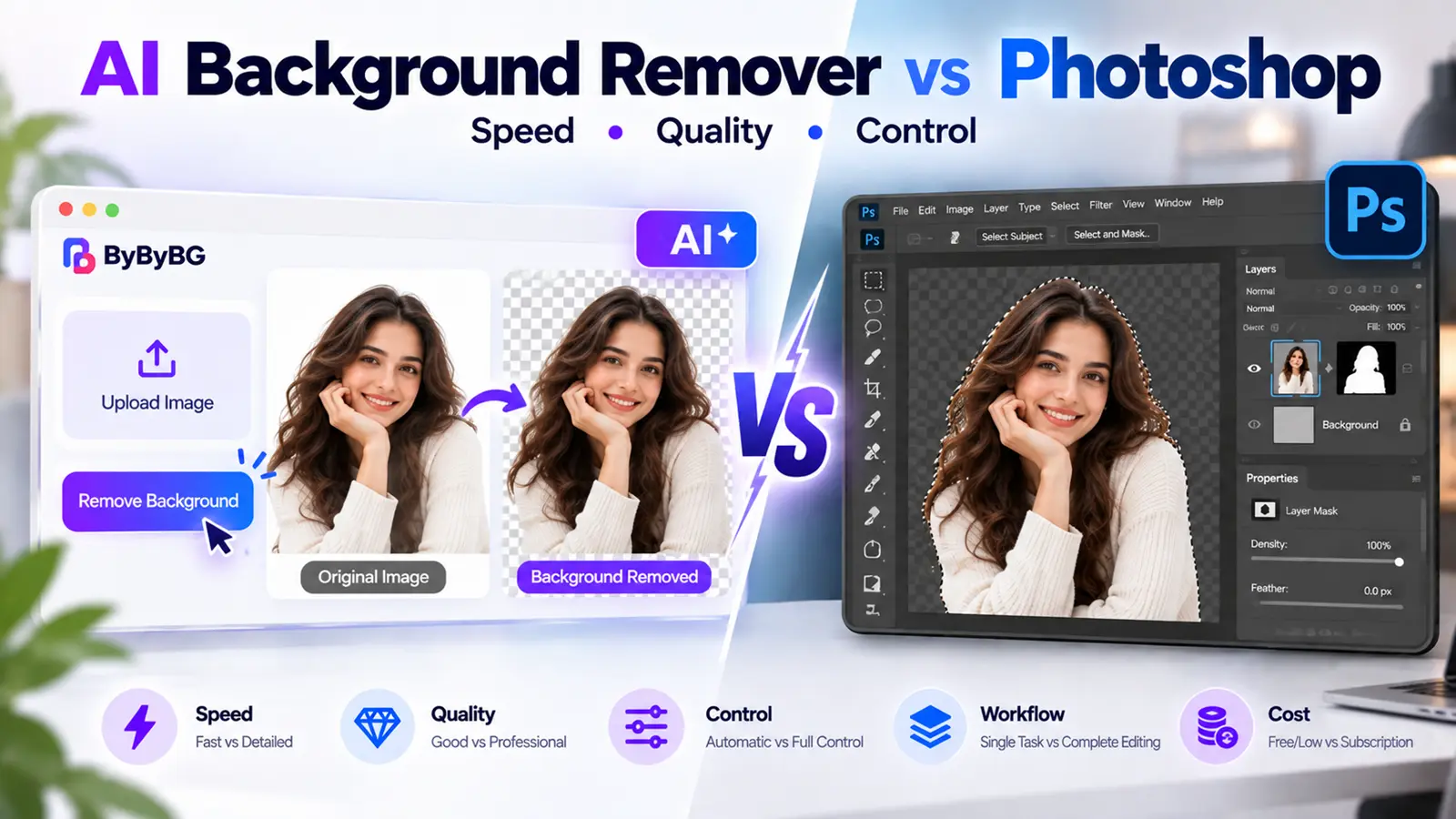
AI background removers and Photoshop can both separate a subject from its background, but they approach the task differently. AI tools focus on automatic subject detection and fast cutouts, while Photoshop combines automated selection features with extensive manual editing and refinement controls.
This guide compares them across speed, ease of use, accuracy, complex edges, product photos, workflow, cost, and editing control — so you can figure out which fits what you're actually trying to do.
Try ByByBG AI Background Remover →
AI Background Remover vs Photoshop at a Glance
What Is an AI Background Remover?
A dedicated AI background remover typically follows a straightforward automated pipeline:
Upload Image
↓
Detect Subject
↓
Segment Foreground/Background
↓
Create Mask
↓
Refine Boundaries
↓
Remove Background
↓
Generate Cutout
Learn more in How AI Background Removal Works.
How Does Photoshop Remove Backgrounds?
Photoshop isn't limited to manually tracing an outline with the pen tool. Modern Photoshop workflows can combine automated and manual approaches, including selection tools, masks, and refinement features.
Conceptually, a Photoshop workflow often looks like:
Automatic Selection
↓
Mask
↓
Refinement
↓
Manual Corrections if Needed
↓
Further Editing or Compositing
AI Background Remover vs Photoshop: Speed
A dedicated AI background remover generally follows a simple sequence: upload, process, download. That's especially useful when background removal is the only task at hand.
Photoshop can also do background removal quickly, but its broader workspace means the same project might continue into mask editing, retouching, color work, compositing, shadow work, and other adjustments — all without switching tools.
For straightforward background removal, a dedicated AI workflow may involve fewer steps. For a project that already requires extensive editing, Photoshop's broader workflow may reduce the need to move between tools.
Which Is Easier for Beginners?
Dedicated AI Remover
Smaller, more focused interface
Fewer decisions to make
Automatic processing
Generally a lower learning curve
Photoshop
More tools and capabilities
More concepts to learn — layers, masks, selections, refinement
For someone new to image editing, a dedicated AI workflow is often simpler to pick up, while Photoshop provides a much larger editing environment to grow into over time.
AI vs Photoshop for Background Removal Quality
Quality isn't a single, one-dimensional measure. It depends on several factors together, including:
Subject detection accuracy
Edge accuracy
Hair and fur
Transparency and reflections
Shadows
Internal gaps
Original image resolution
How much manual correction is applied
Output quality depends on the image, the AI model or Photoshop workflow used, and how much refinement is performed — not on one tool being universally "better" at every single cutout.
AI Background Remover vs Photoshop for Hair and Fur
Modern AI segmentation models can identify complex boundaries automatically, but genuinely difficult hair or fur — flyaway strands, curly hair, fine fur, similar background colors, soft edges, or motion blur — can still produce errors.
Photoshop's advantage here is that a person can manually inspect and refine those difficult areas by hand, which an automated tool alone can't always match.
Which Handles Complex Backgrounds Better?
"Complex" can mean several different things, including:
Busy environments
Similar foreground/background colors
Multiple objects
Overlapping subjects
Transparent objects
Reflections
Fine structures
AI can handle many of these automatically, but prediction errors are possible. Photoshop offers more opportunities for manual intervention when automatic selection isn't quite enough.
AI vs Photoshop for Transparent and Reflective Objects
Glass, sunglasses, bottles, transparent packaging, jewelry, and polished metal are inherently difficult subjects, since background information may show through or reflect off the object itself.
A dedicated AI tool relies on automatic interpretation of the image, while Photoshop offers greater manual refinement possibilities. Neither approach reliably guarantees a perfect result on transparent or highly reflective objects — both tend to benefit from a careful check of the output.
AI Background Remover vs Photoshop for Product Photos
Dedicated AI Remover
Fast product cutouts
Catalog preparation
Transparent assets
Repetitive, simple products
Photoshop
Detailed retouching
Manual shadow work
Color corrections
Reflection cleanup
Compositing and precise edge work
For more on this, read How to Remove Background from Product Photos.
AI vs Photoshop for E-commerce
A small seller processing a handful of listings may prioritize simplicity and speed, while a professional studio may need tighter color consistency, advanced retouching, exact masks, or more complex compositions. That said, needs vary — not every small seller wants the simplest option, and not every studio needs the most advanced one.
AI vs Photoshop for White Background Removal
A common scenario is a product, logo, or portrait on a white background that needs to become a transparent cutout. AI can generally distinguish the subject from the background automatically, while Photoshop offers additional manual selection and refinement options when needed.
One notable challenge for both approaches is a white subject against a white background, where there's very little contrast to work with.
See How to Remove White Background from an Image.
AI vs Photoshop for Creating Transparent Images
Regardless of which tool removes the background, transparency has to be preserved in the final output format. PNG and WebP both support transparency; JPG does not preserve transparent pixels.
Learn more in How to Make an Image Background Transparent and
PNG vs JPG: Which Image Format Is Better for Your Images?.
AI Background Removal vs Manual Background Removal
AI vs Photoshop isn't exactly the same comparison as automatic vs manual, since Photoshop itself includes plenty of automation. It's more useful to think of it as a spectrum:
Fully Automatic
↓
AI Background Remover
↓
Automated Selection + Manual Refinement
↓
Photoshop
↓
Highly Manual Masking/Editing
Which Gives More Manual Control?
Dedicated AI tools usually prioritize simplicity, automation, and fast output. Photoshop provides a broader set of masks, selections, layers, brushes, edge refinement, compositing, and retouching tools.
More control can be genuinely useful — but it also comes with a more involved workflow to learn and use.
Which Is Better for Multiple Images?
Dedicated AI workflows can reduce manual effort for repetitive, simple cutouts. Photoshop also supports automation and batch-oriented workflows depending on how it's set up.
For large image sets, it's worth evaluating whether a given tool supports the batch workflow, output settings, and consistency your project actually needs, rather than assuming any single tool handles bulk processing a particular way.
AI Background Remover vs Photoshop: Cost
Online AI background removers can offer free use, usage limits, credits, subscriptions, or pay-per-image pricing, depending on the specific service. Photoshop's pricing follows Adobe's subscription model.
Since pricing changes over time on both sides, it's worth checking current plans directly before making a cost-based decision, rather than relying on numbers that may be out of date.
Do You Need Photoshop Just to Remove a Background?
Not necessarily. If background removal is your only task, a dedicated online background remover may be enough. Photoshop becomes more relevant when you also need detailed editing, retouching, compositing, or extensive manual refinement.
See How to Remove Background Without Photoshop.
When an AI Background Remover Makes Sense
Consider a dedicated AI remover when you prioritize:
A simple workflow
Quick cutouts
Minimal manual editing
Browser-based access
Product or portrait isolation
Transparent output
A lower learning curve
When Photoshop Makes Sense
Consider Photoshop when your workflow requires:
Detailed manual refinement
Complex compositing
Advanced retouching
Layer-based editing
Precise mask adjustments
Multiple post-processing tasks in one workspace
Can AI Background Removers Replace Photoshop?
For background removal alone, an AI tool can eliminate the need for Photoshop in many straightforward workflows. It doesn't replace Photoshop's broader set of image-editing, retouching, compositing, and design capabilities.
Can Photoshop and AI Background Removers Be Used Together?
Yes — these workflows don't have to be mutually exclusive. Two common patterns:
AI Background Remover
↓
Fast Initial Cutout
↓
Export
↓
Photoshop
↓
Advanced Refinement / Compositing
Or, alternatively: Photoshop's automatic selection, followed by manual refinement, followed by final composition. Either way, this is a much more useful frame than treating it as an AI-versus-Photoshop battle.
How to Remove a Background with ByByBG
Upload your image. Choose the photo you want to process.
Start background removal. Let ByByBG begin processing the image.
AI processes the image. The subject is automatically detected and separated from the background.
Preview the result. Check the edges and fine details.
Download the result. Save it in a transparency-compatible format such as PNG or WebP.
Try ByByBG AI Background Remover →
Frequently Asked Questions
Is an AI background remover better than Photoshop?
It depends on the workflow. A dedicated AI background remover can be more convenient for quick, straightforward cutouts, while Photoshop provides broader manual editing, refinement, retouching, and compositing controls.
Is AI background removal accurate?
Accuracy varies by image. AI generally performs well on clear subjects with good contrast, and can struggle more with fine hair, transparent objects, or low-contrast scenes.
Can AI remove backgrounds around hair?
Yes, modern models attempt to handle hair, though results can vary depending on the strands, lighting, and background color.
Is Photoshop better for complex backgrounds?
Photoshop offers more manual tools for complex cases, which can help when automatic detection alone isn't enough.
Can AI remove product photo backgrounds?
Yes. Product photos are one of the most common use cases for AI background removal.
Can an AI background remover replace Photoshop?
For many straightforward background-removal tasks, an AI tool can eliminate the need to use Photoshop. For broader photo editing, detailed refinement, retouching, and compositing, Photoshop provides capabilities beyond a dedicated background remover.
Is AI background removal faster than Photoshop?
For a simple cutout, a dedicated AI remover can involve fewer steps because the workflow is typically upload, process, and download. Photoshop can also remove backgrounds quickly, especially for experienced users, but it provides a broader editing workflow around the cutout.
Can I remove a background without Photoshop?
Yes. Online AI background removers can process an image without needing Photoshop or any other design software.
Can AI create a transparent background?
Yes. Once the background is removed, saving the result as a PNG or WebP preserves the transparent area.
Which is better for product photos: AI or Photoshop?
AI is well suited to fast, repeatable product cutouts. Photoshop is a better fit when a product image also needs detailed retouching or compositing.
Can AI handle glass and transparent objects?
AI can process them, but results can be less consistent due to reflections and background visible through the object.
Does AI background removal reduce image quality?
Not inherently — quality mainly depends on the original resolution, processing accuracy, and the export settings used.
Can I edit an AI cutout later in Photoshop?
Yes. A common workflow is to use an AI tool for a fast initial cutout, then refine it further in Photoshop if needed.
What format should I use after background removal?
PNG is the most widely compatible format for preserving transparency. WebP also supports transparency and can offer a smaller file size.
Conclusion
AI background removers prioritize automation and speed, while Photoshop provides a broader editing environment and more manual control. Neither approach is a universal winner — which one fits better depends on the image you're working with and what you need to do after the background is removed.
For straightforward background removal, automated AI tools can reduce the number of manual steps. Photoshop provides substantially broader editing and refinement controls when a workflow genuinely requires them — and the two can just as easily be used together.
Ready to try it yourself? Try ByByBG AI Background Remover →